

How do I connect a laser machine to LightBurn over the network?
Most laser machines can be connected to LightBurn over USB or over the network. Over the network, the computer does not have to stand next to the machine, and more than one computer can send jobs to the same machine. For that, the machine and the computer have to be able to find each other on the network, which depends on three settings: the IP address, the subnet mask and the gateway.
What you need
Section titled “What you need”- A network cable of at least CAT5e (an ethernet or RJ45 cable) from the machine to your network.
- A switch or router on the same network as the computer running LightBurn. The machine may be connected to a switch.
- A free IP address for the machine, in the same subnet as your computer.
Why the IP address has to be static
Section titled “Why the IP address has to be static”Many laser controllers do not get an address through DHCP, Ruida controllers such as the RDC6445 and the RDC6332 among them. You set the IP address on the machine itself, and it stays until you change it.
Choose an address that fits your network:
- Look up your computer’s IP address. On Windows, type
ipconfigin Command Prompt and read the IPv4 address; on a Mac it is under System Settings, Network. Say it is192.168.1.23. - Use the same first three numbers for the machine:
192.168.1.x. With subnet mask255.255.255.0, only addresses that match in those three numbers are in the same subnet. - Choose a last number nobody else uses, between 1 and 254, and outside the range your router hands out through DHCP. Otherwise the router can later give the same address to a phone or a printer, and the connection drops as soon as that device comes online. The DHCP range is in your router’s settings;
192.168.1.200is outside it on many routers.
If the controller has no gateway
Section titled “If the controller has no gateway”A gateway is the address through which a device sends traffic to another network. A controller without a gateway setting can only answer devices in its own subnet. That means:
- The computer has to be in the same subnet as the machine. Wi-Fi works, as long as the Wi-Fi is the same network as the switch the machine is connected to.
- A guest network, a separate VLAN or a VPN does not work, even when the machine is connected to the same router: the traffic then has to pass a gateway, and the machine cannot send back.
Setting up LightBurn
Section titled “Setting up LightBurn”In LightBurn, set the device’s connection to Ethernet/UDP instead of USB, and enter the IP address you set on the machine. If the machine is not in LightBurn yet, create it first: creating a BRM machine in LightBurn.
No connection?
Section titled “No connection?”- Is the light on at the network port of the machine and of the switch? If not, check the cable.
- Are the first three numbers of the machine and the computer the same, and is the subnet mask
255.255.255.0on both? - Does another device use the same address? Switch the machine off and run
pingfollowed by the address in Command Prompt or Terminal; if something still answers, choose another address. - Is the computer on the guest network or another VLAN? Connect it to the same network as the machine.
- Does your firewall allow LightBurn? Windows asks the first time; if that was refused, allow LightBurn in Windows Defender Firewall.
- Does LightBurn have the same IP address as the machine?
On a BRM machine
Section titled “On a BRM machine”Every BRM machine can be connected over USB and over the network. Its Ruida controller runs BRM’s own firmware, written for CE compliance: it does not get an address through DHCP and has no gateway, and the subnet mask is fixed at 255.255.255.0. So you always set a static IP address, in the same subnet as your computer. That is a little more work when setting up, and keeps the controller simple and stable.
How you set the IP address depends on the controller. The steps in the videos work the same on an RDC6445 or RDC6332 bought on its own.
BRM Pro and BRM Slim (Ruida RDC6445)
Section titled “BRM Pro and BRM Slim (Ruida RDC6445)”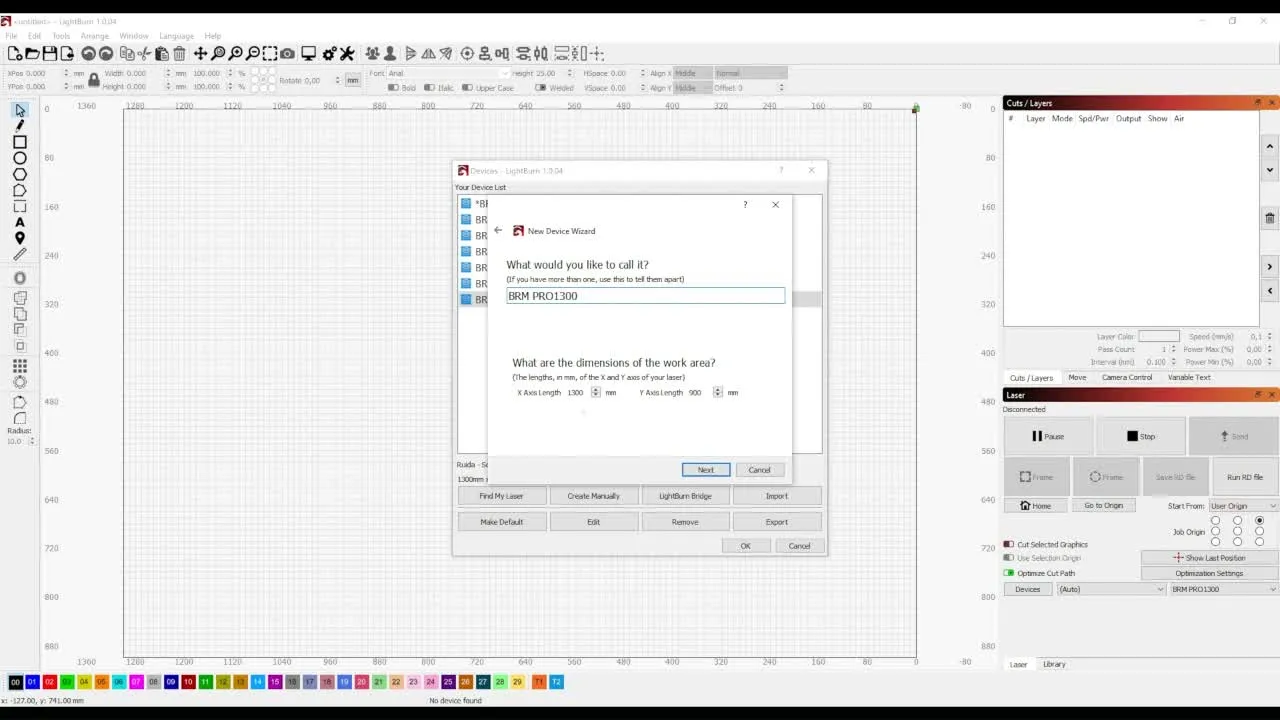
BRM Original (Ruida RDC6332)
Section titled “BRM Original (Ruida RDC6332)”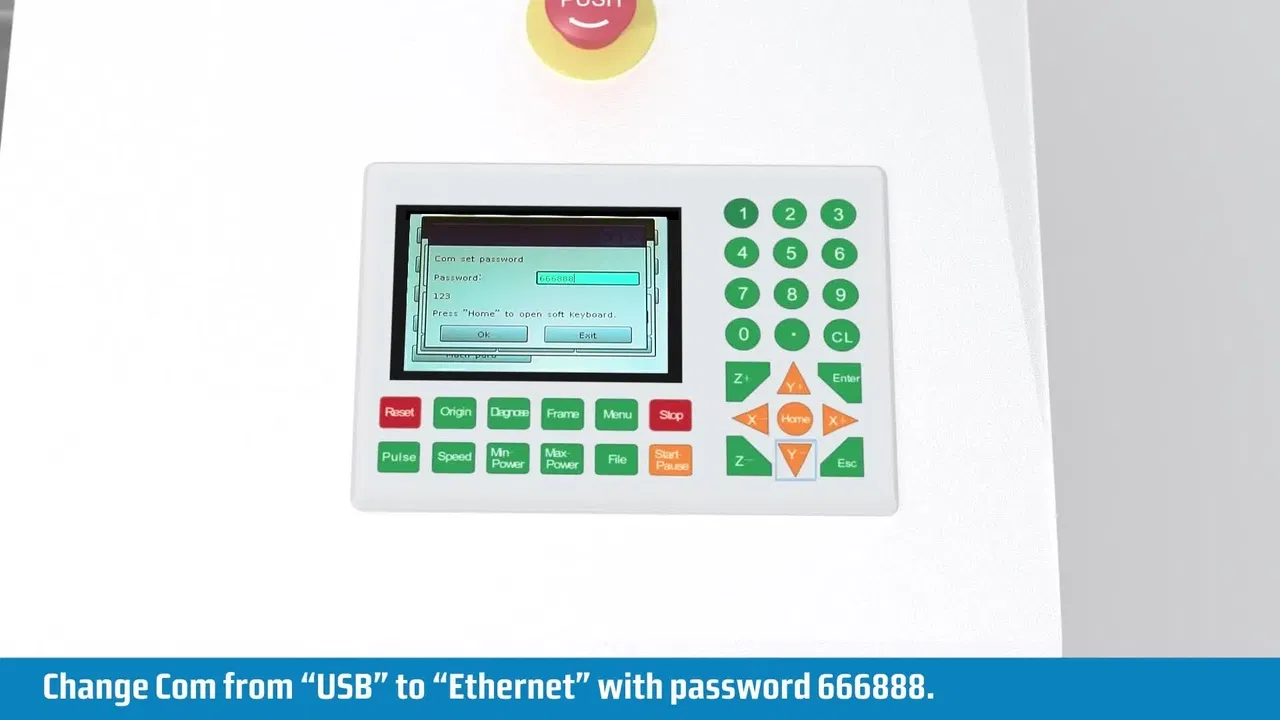
If it does not work, open a ticket and include your computer’s IP address and the address you set on the machine.