

How do I set up my roller rotary?
The roller rotary makes it possible to engrave round objects such as glasses and bottles, or to cut plastic tubes. The video below walks you through the process step by step.
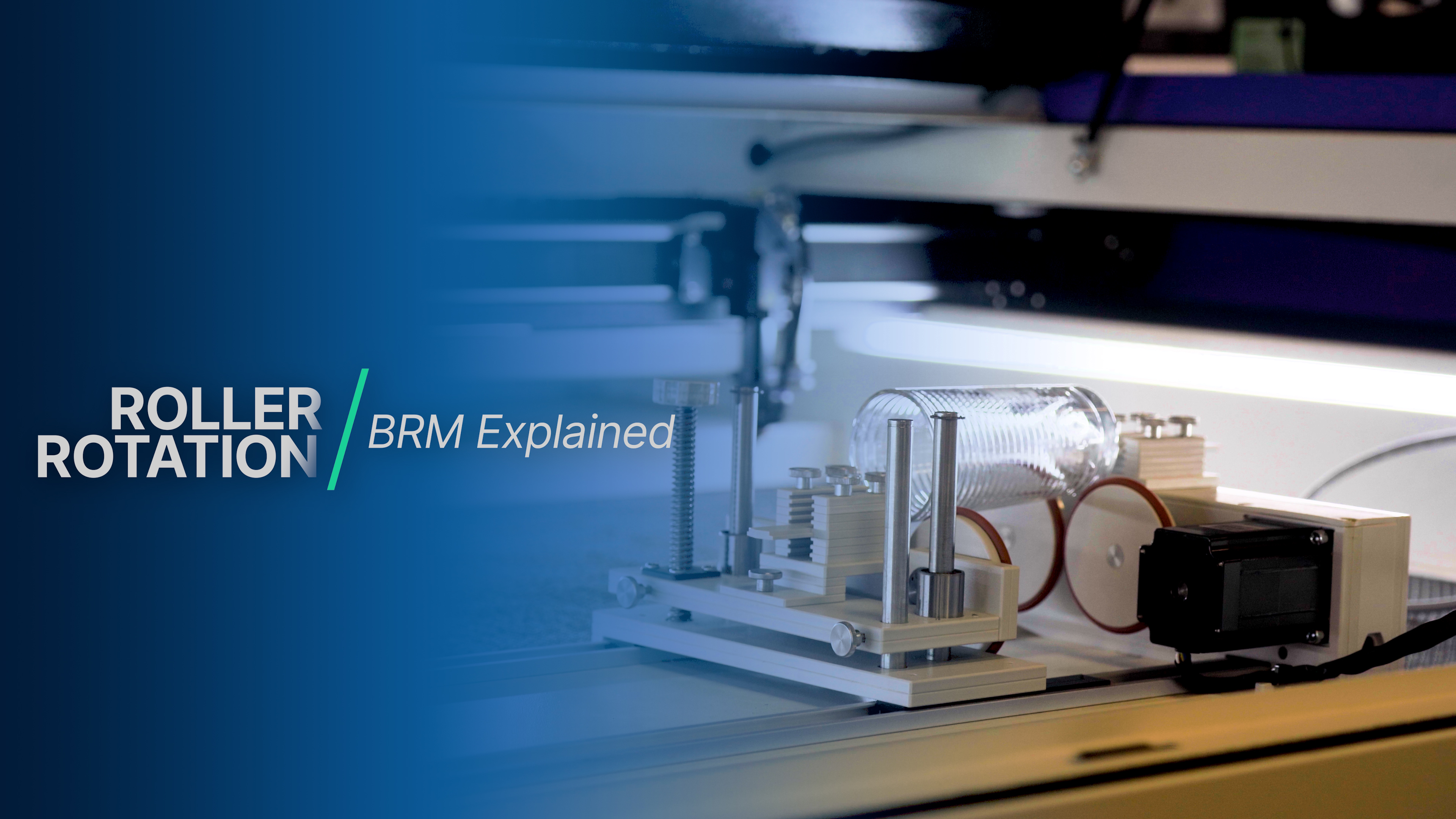
Setting up the roller rotary
Section titled “Setting up the roller rotary”- Turn off the machine or activate the emergency stop.
- Place the rotary in the work area.
- Connect the rotary using the connector on the right side panel, near the door opening.
- Turn the machine back on, or release the emergency stop.
- Press the reset button to release the machine.
- Wait until the machine has completed its homing cycle. This takes longer than usual due to a required timeout on the Y-axis.
The machine now switches the Y-axis over to the rotary. The Y-axis is then unpowered and must be moved manually to the desired position.
- Slide the Y-axis forward and look along the X-rail towards the rotary. Adjust the rotary until it runs parallel to the X-rail.
- Use the adjustment options on the rotary to get the engraving surface of the product as level as possible.
- Position the laser head centered above the rotary.
Settings in LightBurn
Section titled “Settings in LightBurn”- Open the rotary settings via Laser Tools > Rotary Setup.
- Select Roller as the rotary type.
- Enable Enable Rotary.
- Check the direction of the rotary motor. The cable exit indicates the motor side. If the cable points to the right (blue side of the machine), enable Mirror Output.
- Set Steps per Rotation to 16666.
- Set Roller Diameter to 80 mm.
- Engrave your product.
Stopping use of the roller rotary
Section titled “Stopping use of the roller rotary”- Turn off the machine or activate the emergency stop.
- Disconnect the rotary connector from the machine.
- Remove the rotary from the work area.
- Open the rotary settings via Laser Tools > Rotary Setup.
- Disable the rotary.
- Check the status bar at the bottom of LightBurn and verify that “Rotary Enabled” is no longer displayed.
In case you have additional questions you can always send us a ticket.